Team Captain's Guide
We'll be using PickleBoard to manage the Fever4's event, which will enable team captains to record match scores on their own. To use PickleBoard, we'll send you an invite and you'll need to register your account. This guide walks through the full experience — hopefully it answers any questions you have.
While using the app, we ask that you report any issues via the Feedback menu.
Accept Your Invite
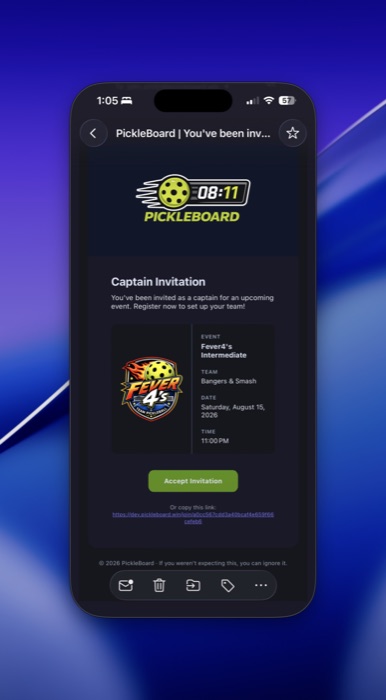
You'll receive an email invite with the subject "PickleBoard | You've been invited as a team captain!" It will look like this:
Verify Your Email
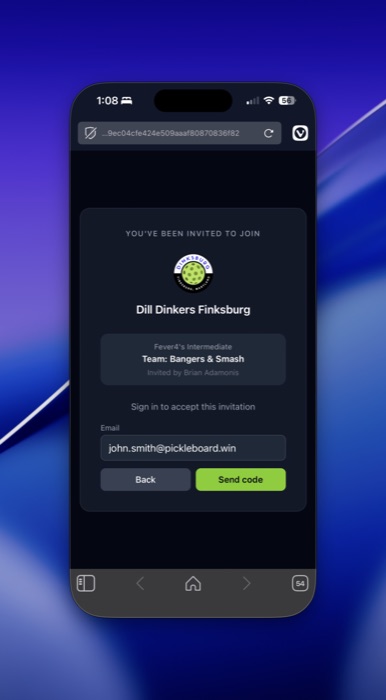
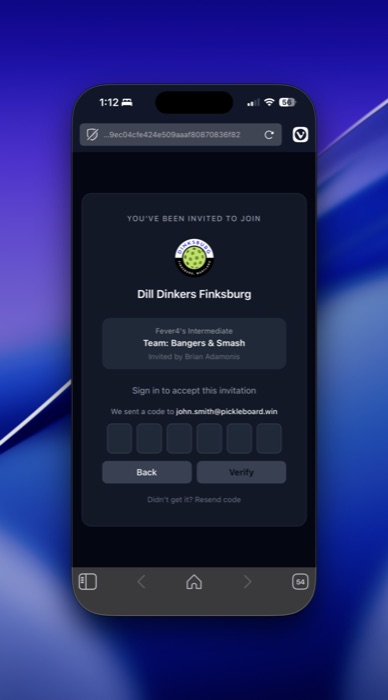
Upon accepting the invite, you'll be taken to a page like the one below, where PickleBoard will send you a one-time passcode to verify your email.
Enter Your Code
Enter the code on the screen below.
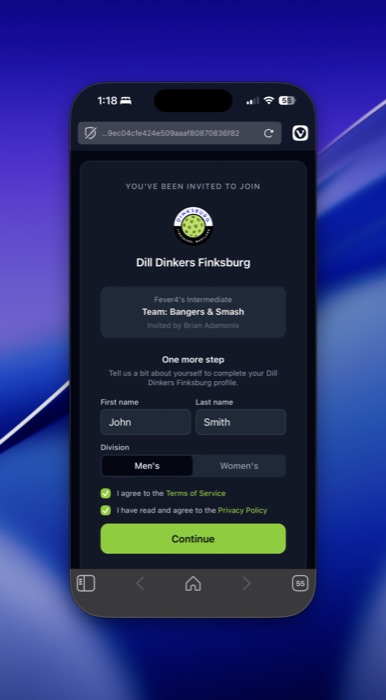
Complete Registration
You'll be asked to enter some basic information for registration, and to acknowledge the Terms & Conditions and Privacy Policy.
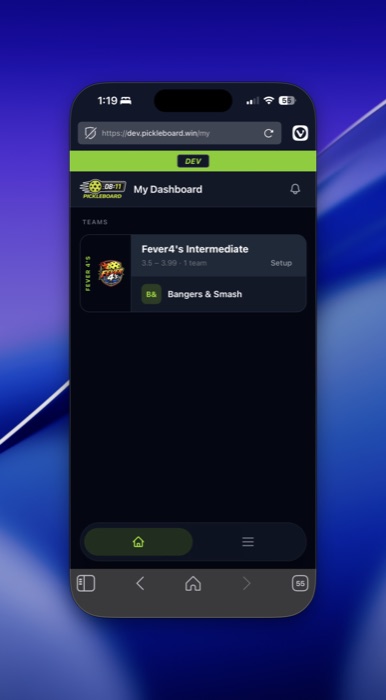
Find Your Team
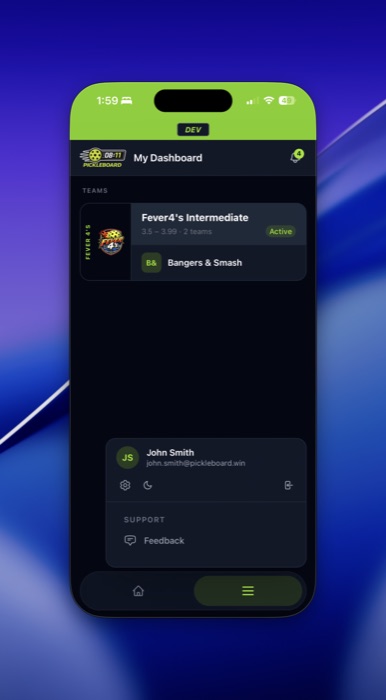
Once registered, you'll see any teams you're a member of. Tap into one to start managing it.
Manage Your Roster
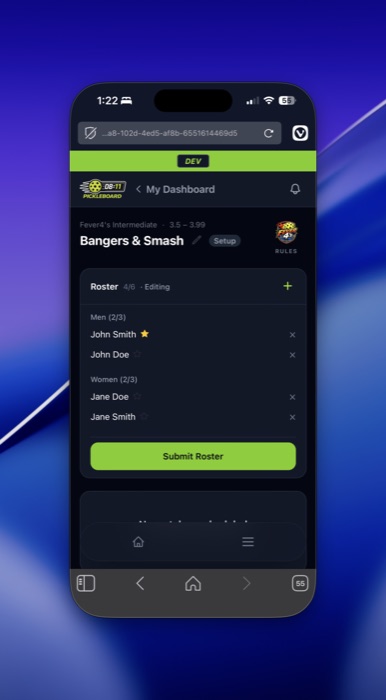
On this first page, unless an organizer has already added your team for you, you'll need to add your team members. The app has a player registry — any players you add are saved there for future reference. Players don't need to use the app themselves if they don't want to, but any team management or score entry requires registration with an email address.
A couple other things worth noting: clicking the pencil icon next to your team name lets you edit the name and upload a logo (this needs organizer approval before it takes effect). And for detailed rules about the Fever4's event — formats, scoring, playoffs, and more — click the logo on the right side.
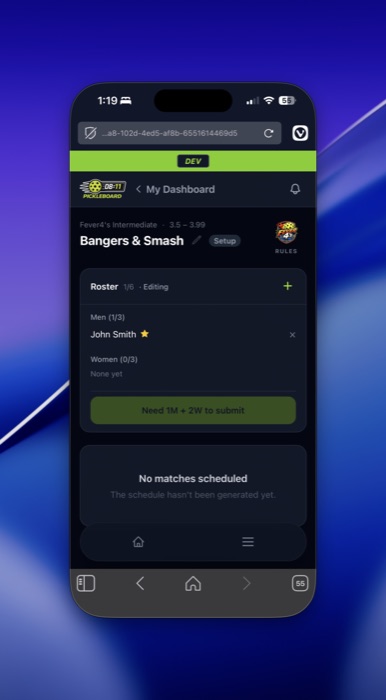
Submit Your Roster
Once all players have been added (2 men and 2 women), click Submit Roster.
Lineups & Rounds
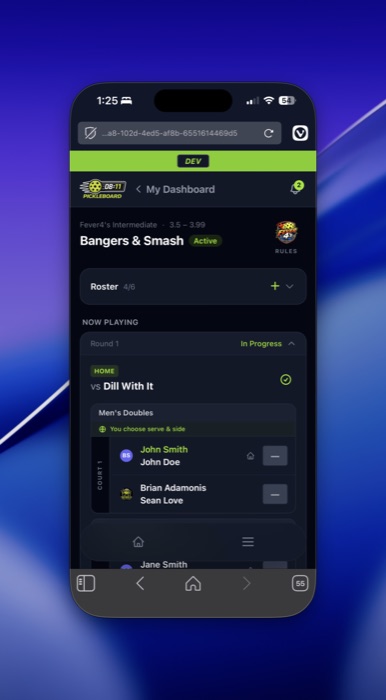
Once all teams have submitted rosters, an organizer will generate the schedule and start the event. If you only have 4 players, your lineup is submitted automatically — but you can still edit it round by round by clicking the green checkmark.
Set Your Mixed Pairs
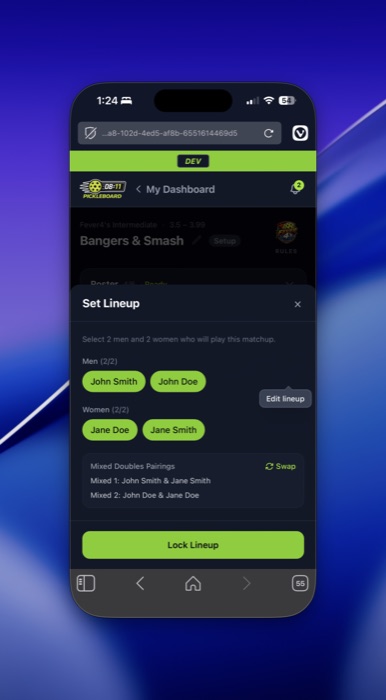
This is where you can swap mixed pairs if you'd like. Click Lock Lineup when you're done.
Notifications
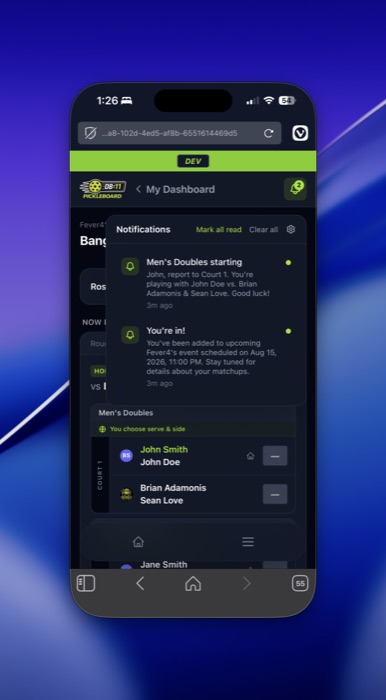
Once activity starts, you'll get notifications within the app. If you add PickleBoard to your homescreen, you can also get notifications directly on your phone — like the example below.
Add to Your Home Screen (iPhone)
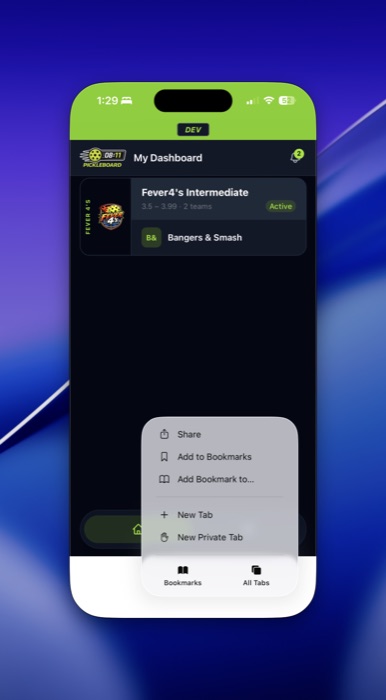
On iPhone, do this in Safari by tapping the three dots in the lower right, then tapping Share.
Add to Your Home Screen (continued)
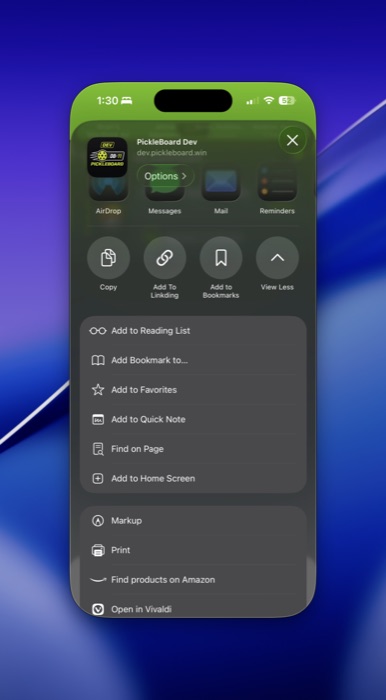
From the share menu, tap View More, scroll down to Add to Home Screen, confirm the details, and it will show up as an icon on your home screen.
Note: this has been tested on desktop and iPhone. If you're interested in testing on Android, let brian@pickleboard.win know — the browser should work fine in the meantime.
Enable Push Notifications
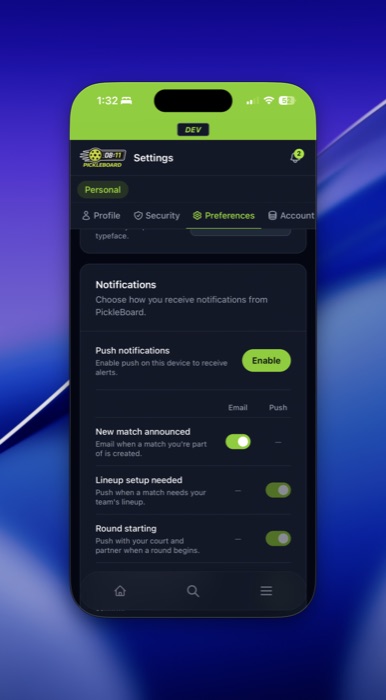
When you open the icon from your home screen, you may need to log back in. As you click around the interface, you may be prompted to enable notifications — do this if you want notifications without having the app open (you'll get them on Apple Watch too, if you have one).
You can also get here anytime: tap the bell icon in the upper right, then the gear icon, to reach notification preferences. Tap Enable next to Push Notifications if it isn't already on.
Enter & Confirm Scores
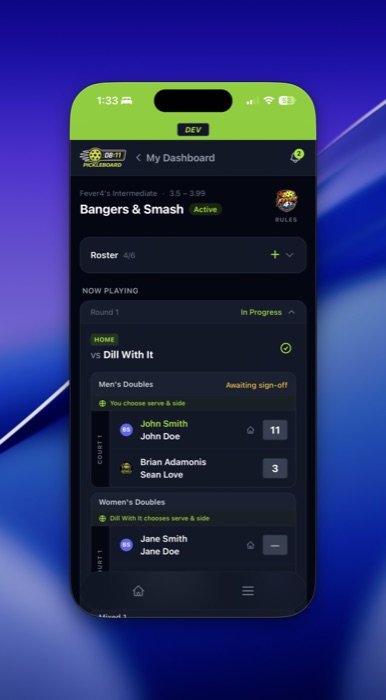
Once games start and you're ready to enter scores, add them directly in the score boxes on the right — or tap a court tile to open a modal with score entry fields. This is a two-way confirmation system: if either captain submits a score, the other captain needs to confirm it before it's accepted. Also note the message on each game — it alternates which team serves and chooses side.
Set Your Fever Frenzy Order
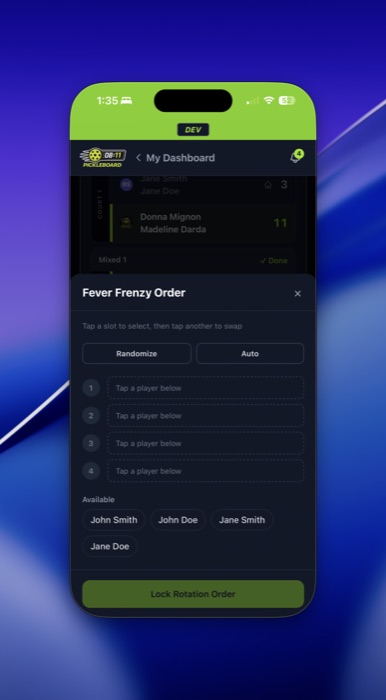
After the 2nd mixed doubles round, the home team captain gets a notification to set their Fever Frenzy order. Get there by tapping the rotation icon in the Fever Frenzy box. You can tap Randomize, tap Auto (which orders players by wins and points), or set the order manually — whatever you prefer. Tap Lock Rotation Order when you're done, which notifies the away team that they're up to set their lineup.
Questions & Feedback
That's pretty much it from a player perspective. If you run into any issues, use the Feedback link in the hamburger menu. The app has been tested, but it's still in active development — any feedback is a huge help. Good, bad, or otherwise.